
01
The stream starts soon
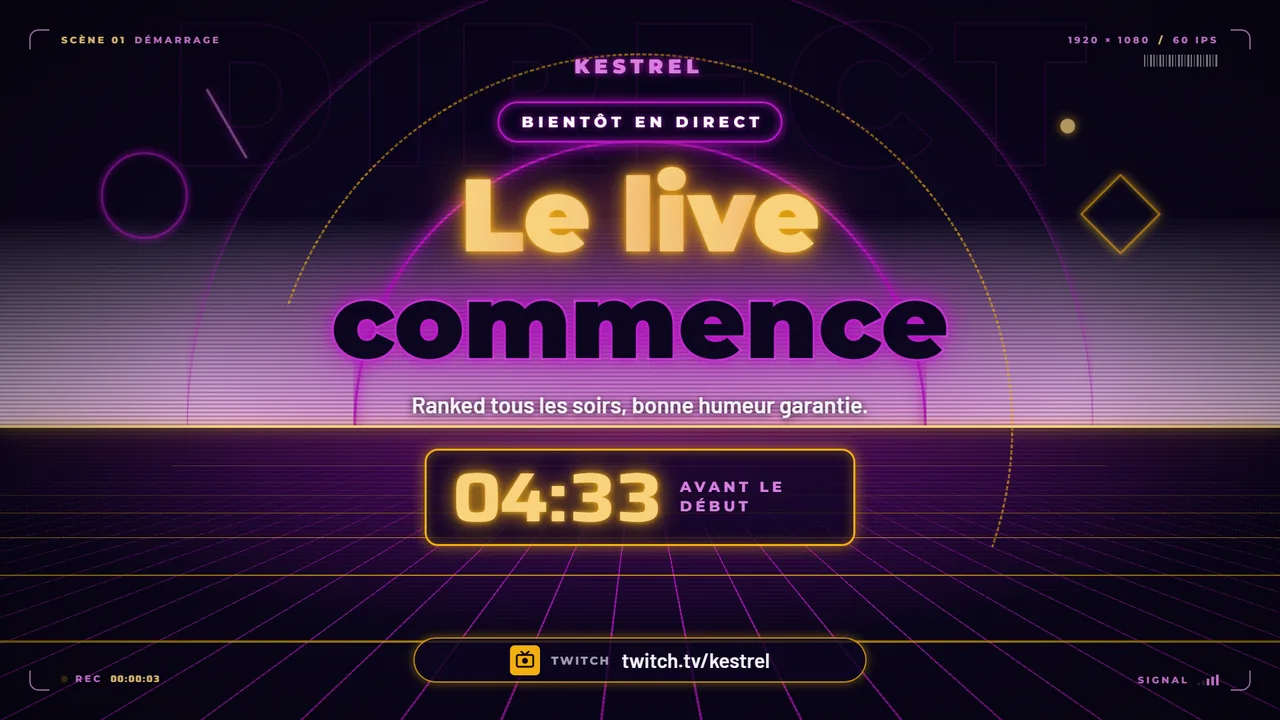
Nothing has started yet: the starting soon screen shows your socials and your Discord. The countdown runs from the time set in the control room, then 3, 2, 1 and the opening.
How it works
From the starting soon screen to the evening recap, the overlay reads what you do and switches screens on its own. Here is the program step by step, shown with screens from the Scene Workshop.
The program, step by step
Nothing has started yet: the starting soon screen shows your socials and your Discord. The countdown runs from the time set in the control room, then 3, 2, 1 and the opening.
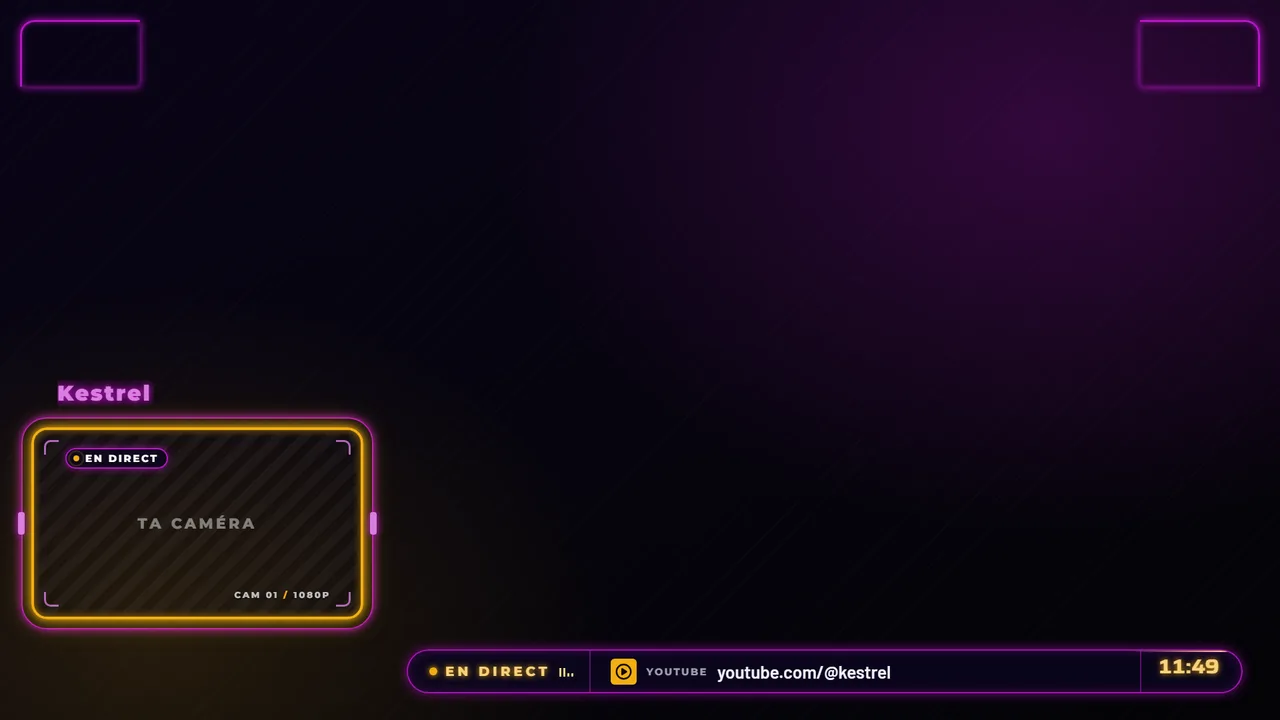
Your game capture in full screen, your webcam in its animated frame, the music playing and the evening's follower goal.
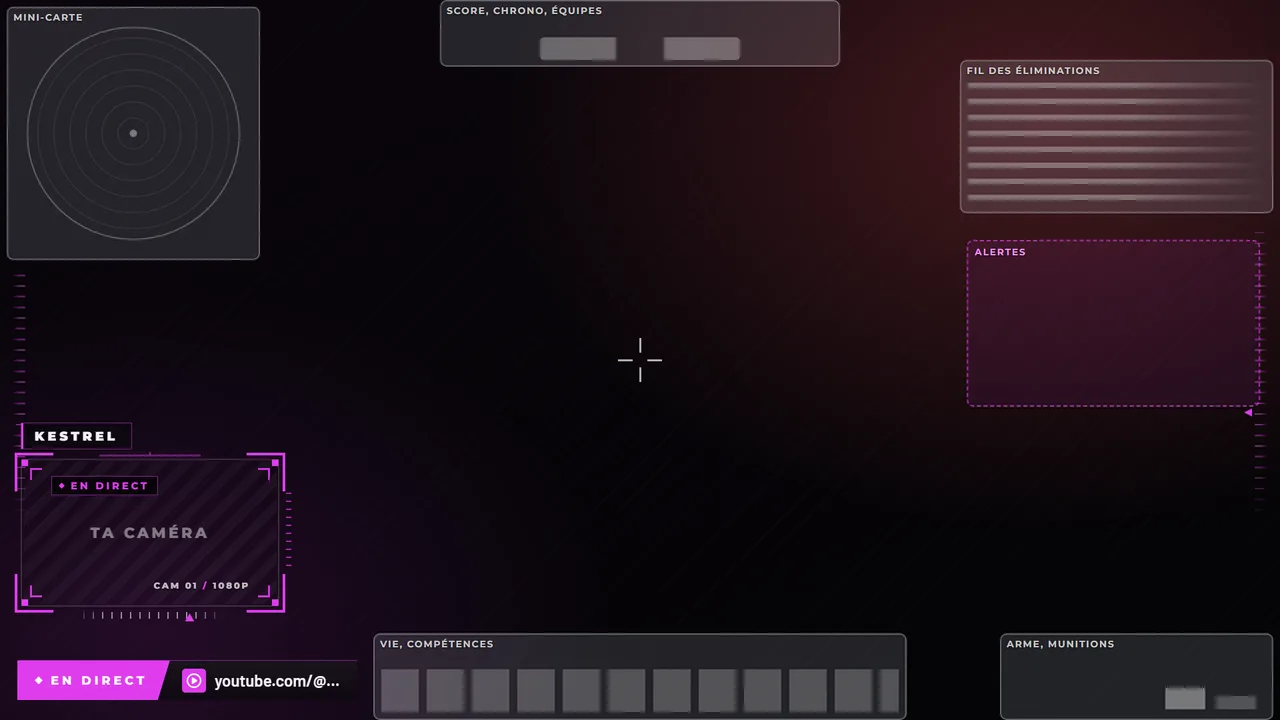
Menus or queue: the “Between games” strip appears. Valorant reports it through the Riot client API; on other games, it's the cursor coming back.
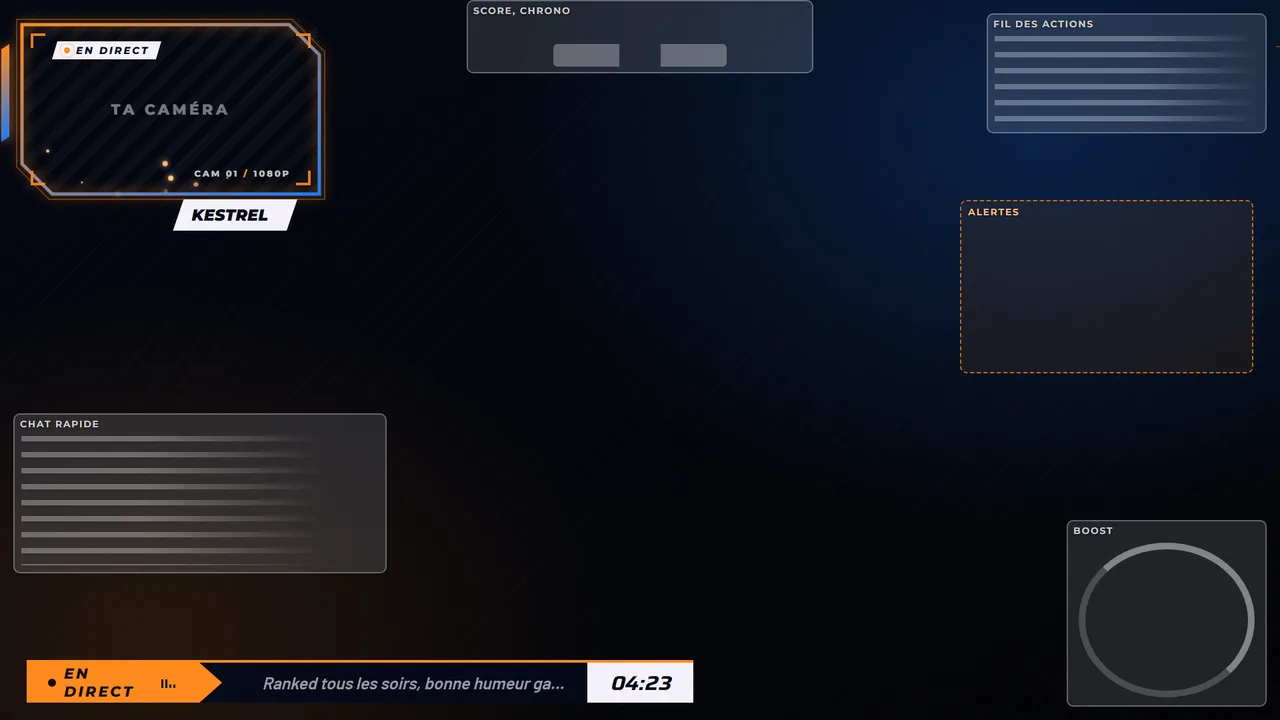
The overlay reads the game's stats API: score, timer, boost, goals, saves. It installs on your PC, the only machine the game sends its stats to.
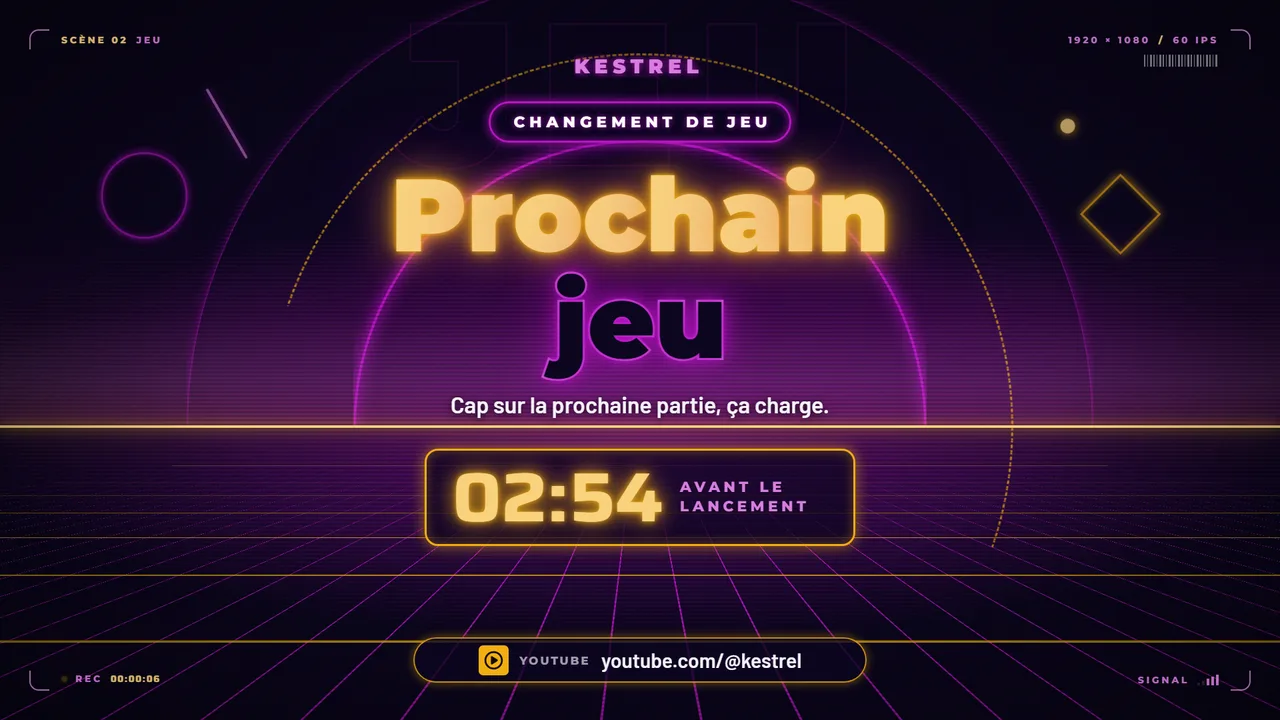
The new game isn't running yet: the screen announces where you're headed. An animated curtain covers every screen change.
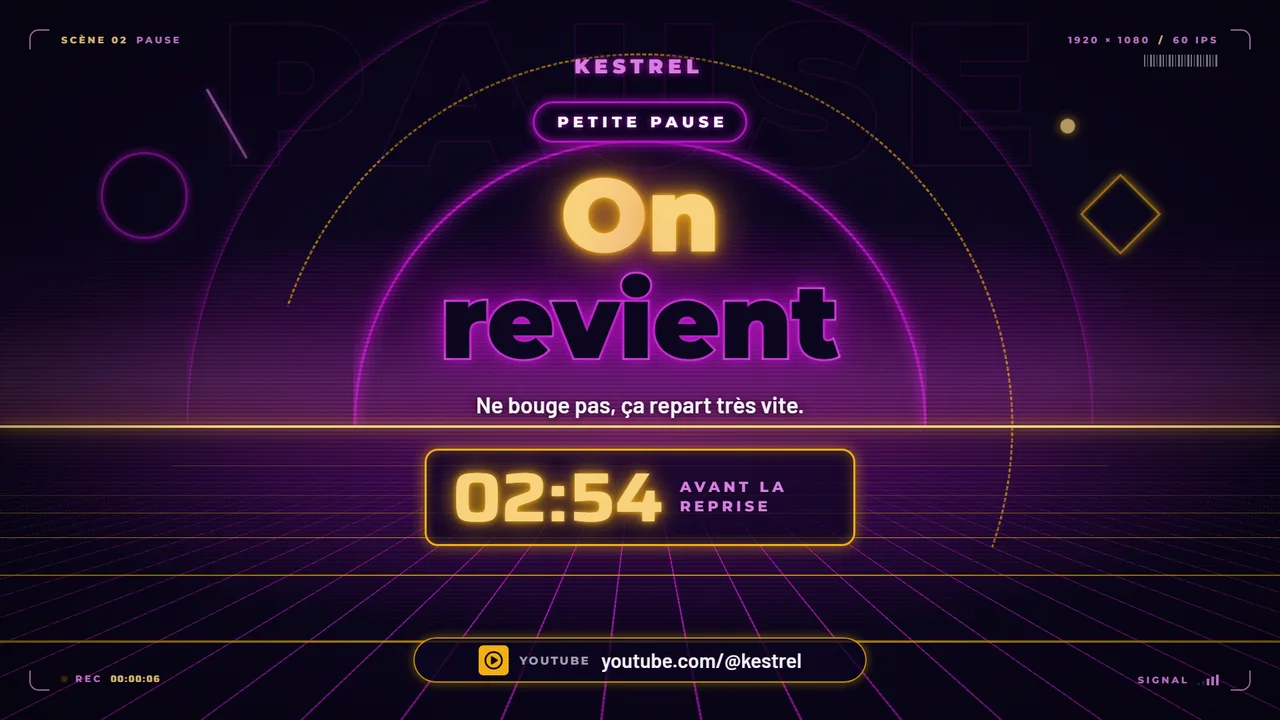
Three minutes without touching the keyboard or the mouse: “Be right back” covers the capture. Game minimized or closed: “Back in game, in a moment”.
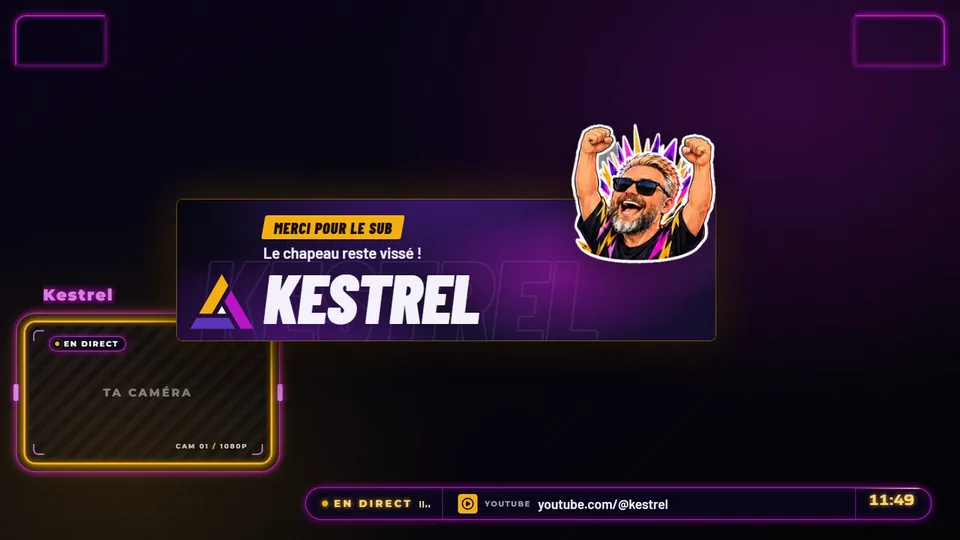
Seven animated alerts for Streamlabs' Alert Box, and modules that read the Twitch chat: poll, emote rain, race, wheel.
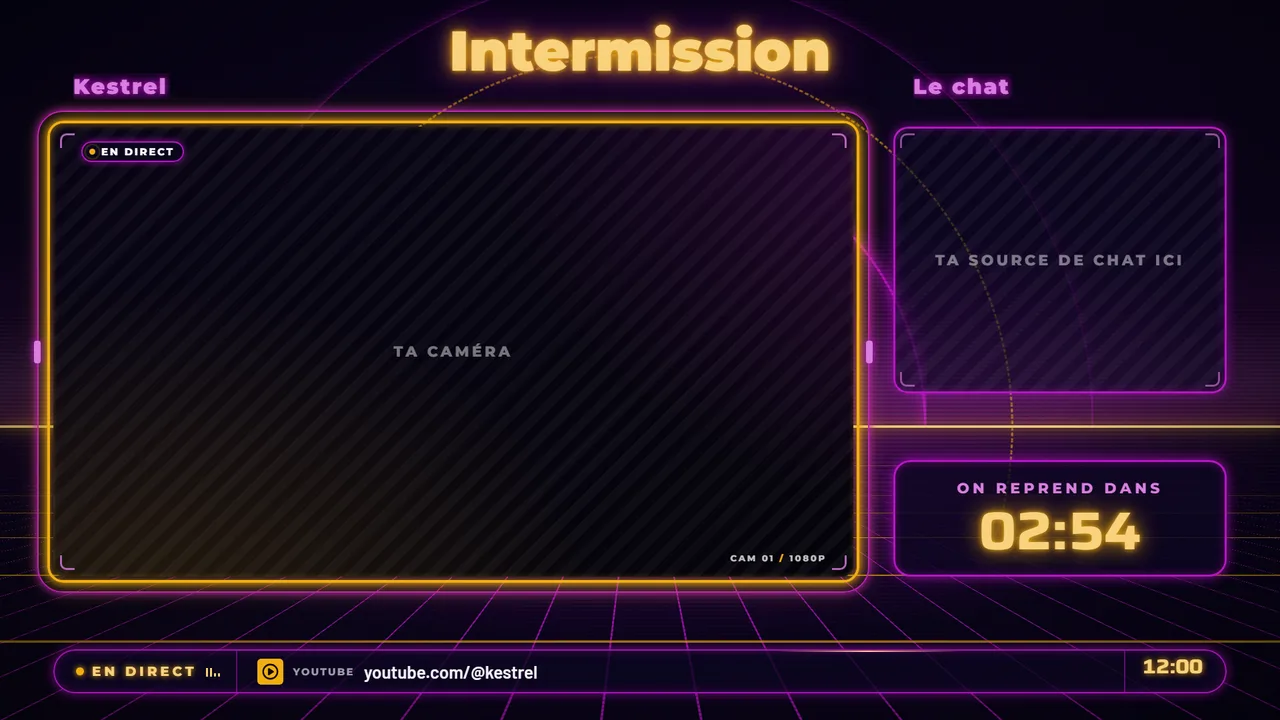
The control room sets the ticker, countdown, goal, music and alerts. On-demand scenes (Just Chatting, Intermission, Pre-match) switch with a click or a key.
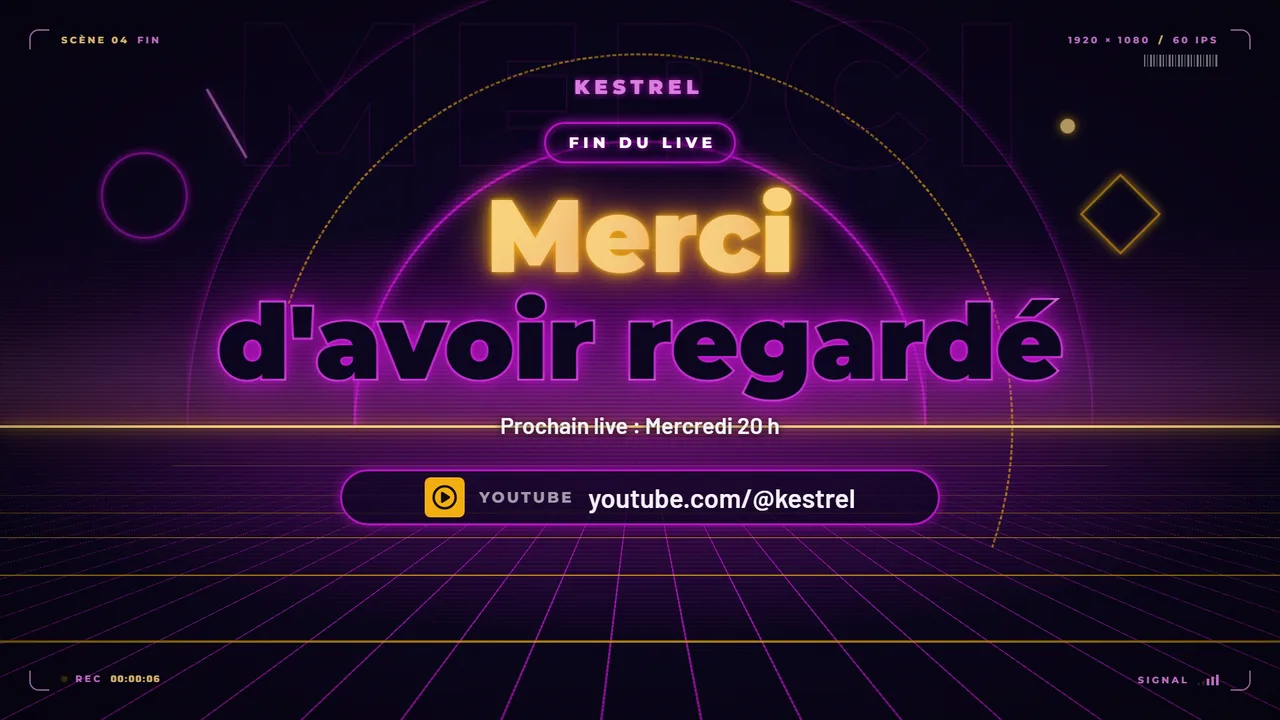
The end screen says thanks and reminds people of your socials. The recap fills itself in: time per game, followers, results, and on Rocket League every match.
What you need
The screens, alerts and modules go in as browser sources in both. Automatic scene switching goes through Streamlabs today; the OBS version is in the works.
To build your pack in the Scene Workshop and set up your modules. Nothing to install, no account.
Optional: handy for on-demand scenes and slow-motion replays. Everything else runs without it.
Questions
A program on your PC checks which game is in the foreground and how long it has been since you touched the keyboard, the mouse or the controller. Valorant is read through the Riot client's local API, Rocket League through the game's stats API.
The free tools, yes, and the Scene Workshop too: one look free, the others €19 each or €89 for all. The full program (scenes that switch on their own, remote, control room) runs today on Aghen0r's channel: making it installable on your side is the work in progress. In the meantime, we build it custom.
The pages go in as browser sources in OBS just as in Streamlabs. Automatic scene control goes through the Streamlabs API today; the OBS version, through obs-websocket, is in the works.
No. The game names are there to say what the overlay can read: their visuals belong to their publishers and are not part of the packs. Yours are created for you.