
Animated webcam frames for OBS and Streamlabs
Original animated frames, sorted by game world, that move just enough to last a three-hour stream without tiring anyone. Your username in the label, a transparent WebM loop in four formats, an HTML source in your colors. One frame is free.
- Frames
- 30
- Worlds
- 10
- Formats per frame
- 4
- Perfect loop
- 4 to 8 s
Six of the thirty frames, in turn, on a real stream scene. At each switch, the reaction burst of a new follow.
The library
Thirty frames, ten worlds.
Each frame has its own identity, label and emblem, and a reaction for the follows you see in each preview. Previews are watermarked, the delivered files are not. We evoke a genre, we imitate no game. One frame is free, the other 29 are in the shop packs.
In the pack
What a frame pack contains.
For each frame, everything you need to put it up tonight, whatever your camera and wherever you stream.
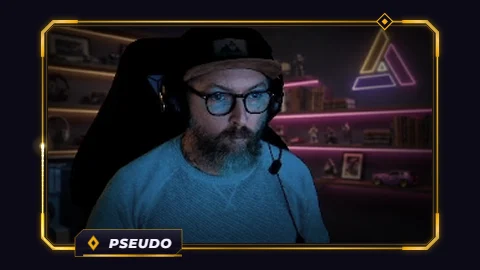
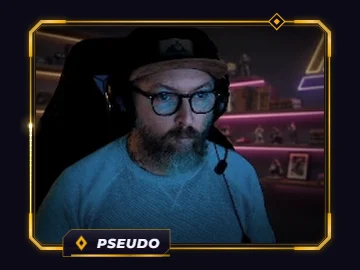

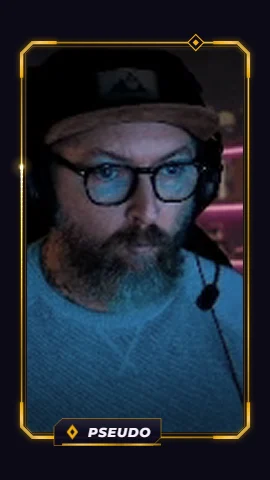
- 01
Four formats
16:9 for the classic webcam, 4:3 for older cameras, square for a screen corner, vertical for TikTok and shorts. Same frame, same animation.
- 02
A transparent WebM loop
Transparent background (VP9 with alpha), perfect 4 to 8 second loop, lightweight: it runs for hours without weighing on your PC. The center stays empty, your webcam shows through underneath.
- 03
An HTML source with your name
The same frame as a web page: your username, your gold and your two glow colors, your logo in place of the emblem. You change one line, the frame follows.
- 04
The OBS and Streamlabs guide
Where to place each file, how to fit the webcam in the opening, and the exact coordinates of the opening for each format.
Put it in OBS or Streamlabs
- 01
Add your webcam
In OBS or Streamlabs, your usual camera source, at the size and position you want.
- 02
Place the frame on top
OBS: Media Source, check Loop. Streamlabs: Media File, check Loop. Or the HTML source as a Browser Source, at the size of the format.
- 03
Fit the opening
The frame is 125% of the webcam in each direction: resize it until the opening hugs the image. The coordinates are in the guide.
- 04
Group the two
Put camera and frame in a group: you move and resize them together, without ever re-fitting anything.